



Common GTIN Problems and How to Avoid Them
If you sell products online, understanding GTINs—Global Trade Item Numbers—is essential. GTINs are the unique numerical identifiers embedded in product barcodes (like UPCs or EANs) that help retailers, search engines, and platforms track and catalog products accurately. Whether you’re listing on Amazon, Google, Walmart, Shopify, or WooCommerce, GTINs are the common language that powers search relevance, ad performance, and listing approval.
However, using GTINs incorrectly can cause your products to be disapproved, misrepresented, or even delisted. Unfortunately, many businesses unknowingly buy non-compliant UPCs or reuse the same GTIN for multiple items, leading to costly issues.
Below are the most common GTIN-related problems by platform, along with corrective actions to help keep your listings active and compliant.
GTIN Conflicts and Brand Mismatches – Amazon

Amazon uses GTINs to match product listings to existing ASINs (Amazon Standard Identification Numbers). If your listing doesn’t match the GTIN data Amazon has on file, you may get one of these common errors:
Error 8542
Product ID already exists for a different ASIN
Error 8572
The value specified is invalid
Error 8541
Conflicting information for the same GTIN
These usually happen when a GTIN is reused incorrectly or when the brand name in your listing doesn’t match the one registered in GS1’s database. The corrective actions are;
- Check your GTIN on www.GTIN.info to verify that it’s registered to your company name.
- Ensure the brand name listed in Seller Central matches exactly what’s registered to the GTIN.
- Avoid resold or shared barcodes—Amazon flags these as non-compliant.
- For new products, consider enrolling in Brand Registry and requesting a GTIN exemption if applicable.
Missing or Invalid GTINs – Google Merchant Center

Google requires GTINs for all branded products listed in the Shopping feed. If the GTIN field is blank, or the value doesn’t match their global product catalog, the warning is:
“Limited performance due to missing value [GTIN]”
Only Use GS1-Licensed GTINs
Ensure you’re using a valid GS1-licensed GTIN that corresponds to the actual product and brand.
Understand GTIN Principles
Check that the GTIN length: 12 digits for UPC (U.S.), 13 for EAN, or 14 if zero-padded.
Use of GTIN Exemption, When Appropriate
If your product is private label, handmade, or has no barcode, apply for a GTIN exemption.
Duplicate GTINs – Shopify

In platforms like Shopify (and WooCommerce), the GTIN is used when syncing product feeds with Google or Facebook. Common issues here include:
The same GTIN being used across multiple product variants (sizes/colors)
GTINs missing altogether or listed in the wrong field.
Entering a 13-digit EAN into a UPC field, triggering mismatches.
The corrective actions are;
- Assign a unique GTIN to every variant (size, color, pack size).
- Double-check that the GTIN field in your Shopify product details is correctly labeled (often under “Barcode (ISBN, UPC, GTIN, etc.)”).
- In WooCommerce, ensure the GTIN is entered under the correct product attribute and avoid duplicating values.
- Refer to the Shopify Community discussions on GTIN to troubleshoot specific cases.
Formatting & Pack Hierarchy Errors – Walmart Marketplace

Walmart requires all GTINs submitted through their Seller Center to be formatted as 14 digits, including the correct prefix and check digit. They also enforce strict rules for pack configurations: your “Each GTIN” (individual unit) and “Orderable GTIN” (case or bundle) must align properly.
Listing a 12-digit UPC without zero-padding
Using the same GTIN for both an individual item and a multi-pack
Merged listings due to GTIN duplication
The corrective actions are;
- Convert UPCs to 14-digit GTINs by adding leading zeros where needed.
- Assign a different GTIN for each configuration (e.g., single item vs. 3-pack).
- Use Walmart’s listing validation tool to test your product feed for errors.
- Ensure the brand name and manufacturer details on file match GS1 records.
Final Tips: Preventing GTIN Problems
GTIN errors aren’t just technical—they affect your sales, visibility, and customer trust. Here are a few best practices to avoid problems across all platforms:
- Only use GTINs that originate from GS1 or verified sources. Avoid buying UPCs from cheap resellers.
- Use a GTIN lookup tool like the one at www.gtin.cloud to verify ownership and structure.
- Keep a central GTIN database for your team to avoid duplicates or reuse.
- Before launching a new product, validate the GTIN and format to match the marketplace requirements.

ITF-14 Barcodes

What is a UPC Code?
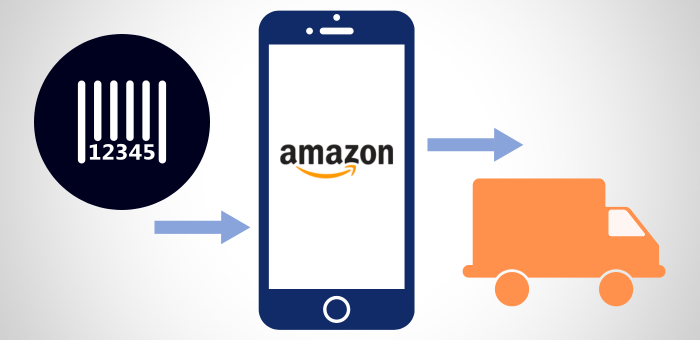
GTINs for Amazon
We Are Here To Help!
Please contact us at 888.540.6885 or chat with us online If you would like to set up a call with a consultant for assistance, please use the button below.